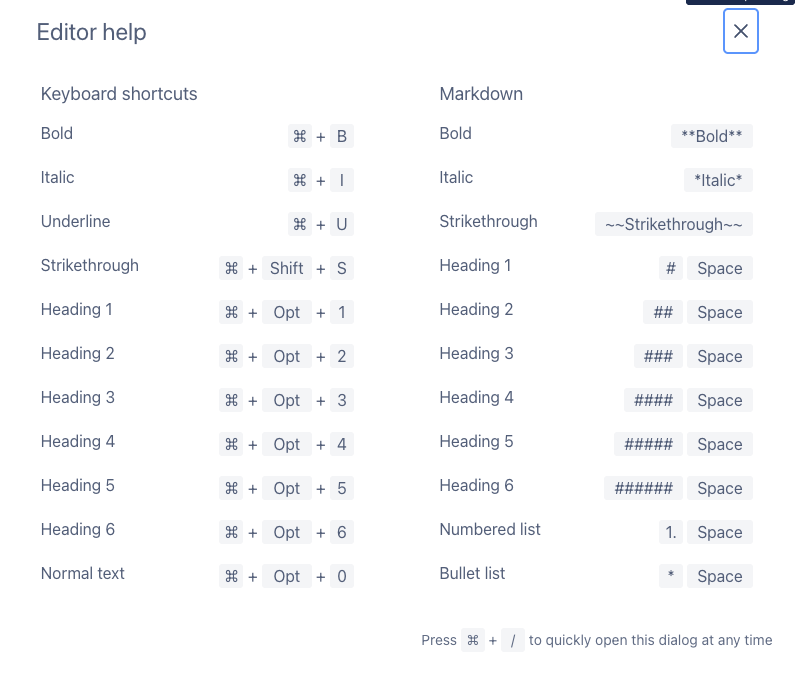
Useful keyboard shortcuts
All shortcuts use Mod=Cmd on MacOS and Ctrl on Windows/Linux.
Text formatting
Description | Shortcut |
|---|---|
Bold | Mod+B |
Italic | Mod+I |
Underline | Mod+U |
Strikethrough | Mod+Shift+S |
Inline code | Mod+Shift+M |
Clear formatting | Mod+\ |
Paste plain text | Mod+Shift+V |
Block formatting
Description | Shortcut |
|---|---|
Normal text | Mod+Alt+0 |
Heading 1 | Mod+Alt+1 |
Heading 2 | Mod+Alt+2 |
Heading 3 | Mod+Alt+3 |
Heading 4 | Mod+Alt+4 |
Heading 5 | Mod+Alt+5 |
Heading 6 | Mod+Alt+6 |
Bullet list | Mod+Shift+8 |
Numbered list | Mod+Shift+7 |
Horizontal rule | Mod+Shift+- |
Links and tools
Description | Shortcut |
|---|---|
Insert / edit link | Mod+K |
Find | Mod+F |
Annotate / comment | Mod+Alt+C |
Add alt text to image | Mod+Alt+Y |
Open editor help | Mod+/ |
Tables
Description | Shortcut |
|---|---|
Create table | Shift+Alt+T |
Next cell | Tab |
Previous cell | Shift+Tab |
Add row above | Ctrl+Alt+↑ |
Add row below | Ctrl+Alt+↓ |
Add column before | Ctrl+Alt+← |
Add column after | Ctrl+Alt+→ |
Editing
Description | Shortcut |
|---|---|
Undo | Mod+Z |
Redo | Mod+Shift+Z / Mod+Y |
Submit | Mod+Enter |
Insert line break (within block) | Shift+Enter |
Indent | Tab |
Outdent | Shift+Tab |
Shortcuts outside the editor
These shortcuts work while viewing a page (not in edit mode). Single-letter shortcuts are only active when focus is not on a text input.
Page actions
Description | Shortcut |
|---|---|
Edit page | E |
Save page | Mod+S |
Save as draft | Mod+Shift+S |
Save and publish | Mod+Alt+S |
Copy link to current page | K |
Close page / dialog | Esc |
Navigation
Description | Shortcut |
|---|---|
Go to parent | U / Alt+← |
Go to first child | Alt+→ |
Go to previous item in tree | Alt+↑ |
Go to next item in tree | Alt+↓ |
Sidebars
Description | Shortcut |
|---|---|
Toggle navigation sidebar | Alt+O / [ |
Toggle context sidebar | Alt+P / ] |
Create
Description | Shortcut |
|---|---|
Show create child menu | C |
Create child page | N |
Create sibling page | Alt+N |
Create root page | Mod+N |
Search
Description | Shortcut |
|---|---|
Focus search | Alt+F / / |
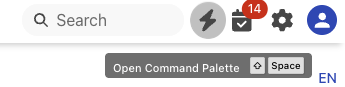
Open command palette | Ctrl+Space / Shift+Space / Mod+Shift+P |
Command palette
Phonemos comes with a pretty good keyboard navigation and a direct access menu to functionality.
Open the command palette next to the search field:
This will bring up a searchable list of functions that you can open or use in the current context:
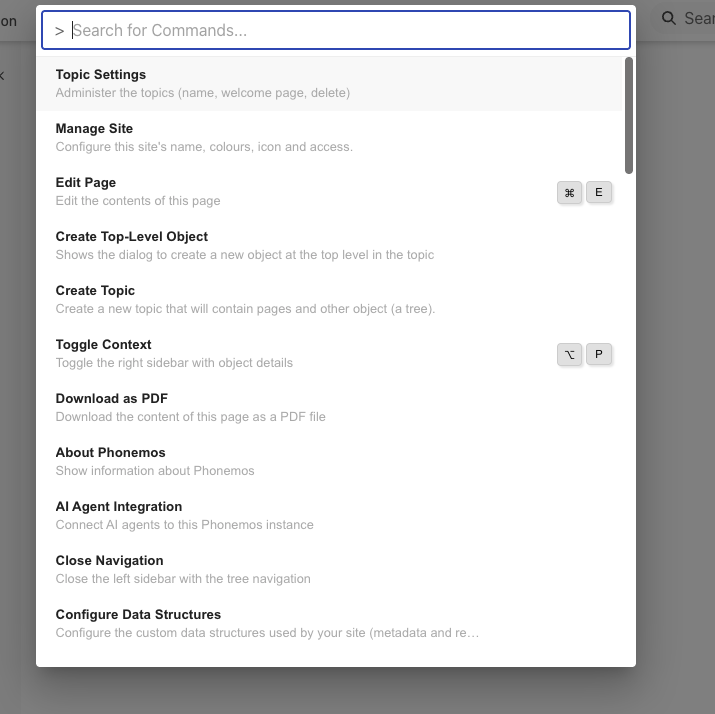
Where available, the keyboard shortcuts are displayed next to the function.
Markdown options and keyboard shortcuts while editing
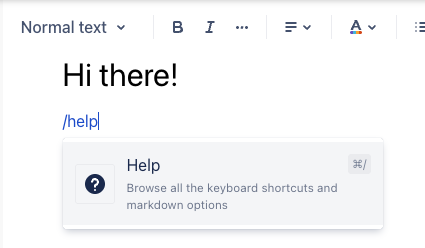
If you need to see the same keyboard shortcuts that are available in the editor, use /help to get a dialog popup explaining these.