Your pages can contain dynamic content through Phonemos widgets. Embed tasks in meeting notes or when you have a todo item inside your page.

While editing type “/” or select the + button in the toolbar to add one of all the other widgets we have.
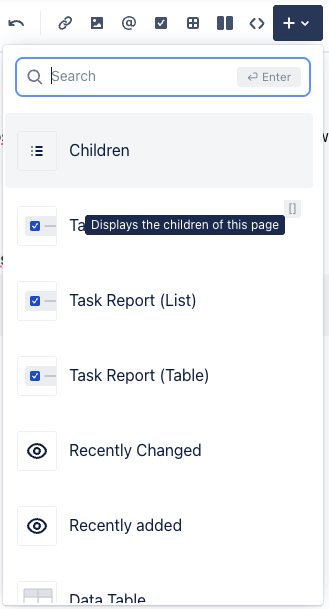
Widget index
Widget | Purpose and use |
|---|---|
Children | Creates a list of all child objects similar to a table of contents. You decide how many levels of children you want to see. |
An action item embedded in a page. Useful for todo items in unfinished content or if you write your meeting notes in Phonemos. Tasks can be assigned to users. A due date can be set. | |
Creates a list of tasks in the system. Use the filter system to select only those tasks you want to see. Use this for example to automatically show all open action items in your meeting note so you can get updates on progress during the meeting. | |
Same as Task Report, but allows you to also configure the columns you want to show for each task, e.g. on what page the task was created/referenced. | |
Recently changed | Creates a little timeline with all recently changed Phonemos objects below a certain parent object. Put it on the landing page of your topic if you want to inform visitors of new or updated content. |
Recently added | Same as recently changed, but only selects newly created objects, not updates of existing items. |
Embed a metadata table into the page. Create your metadata query, select the metadata fields to show, group the items as needed and add functions like sum, averages etc. on numeric field values. Use this to visualize an overview of all kinds of inventories and directories. | |
Similar to Data Table, but only creates a list of the objects that match the metadata query. Does not show columns with other field values. Use this to insert dynamic navigation options for articles matching a certain keyword or where a certain label was set. | |
Show and edit the value of a metadata field directly inline in a page. Use this to create a form like experience to fill in metadata of a page. | |
Files & images | Unsurprisingly, this will embed a file or image into the text. |
Mention | Mention someone to reference a certain user. Please note that by default, mentions do not cause notifications to be sent out in order to not spam users for every little update. |
Named Section | For export and publishing purposes, you can create named sections within your text. In online editing, these are shown pretty much like any other paragraph, but when exporting into Word, Excel etc. or publishing the topic onto a portal site, the layout template can position and format these blocks in a custom way in order to create a more interesting layout. |
Emoji | Use emojis to express ideas and emotions. |
Embed BPMN process diagrams using the bpmn.io process editor (used by the Camunda business process engine). Please note that this creates potentially executable BPMN xml to be used with Camunda. This also means, that BPMN syntax is strictly enforced. So use this if you really want to use proper BPMN. If you just want to doodle around freestyle, use the Diagram widget instead. | |
CMMN is the sibling to BPMN for unstructured case management processes using the bpmn.io editor. | |
Embed a diagram, mockup, floorplan etc. into your pages. Is based on the diagrams.net open source components. | |
List all files attached to this page, e.g. embedded images. | |
Action Button | Insert a button that can be clicked to trigger an action like creating a subpage from a page template. |
Expand | Insert and expandable section of text. |
Table | Insert a table. |
Issue Reference | Link to an issue of an external data source like Jira or Youtrack. This requires a connector being configured somewhere in Phonemos to which the user has access to. |
Include content | Include the content of another page as a read only section. Use this to reuse existing content blocks. |
Code snippet | Display code with syntax highlighting. |
Status | Insert a status label (text in a coloured box). |
Info panel | Highlight information in a coloured panel. |
Date | Add a date using a calendar. |
Note | Add a note in a coloured panel. |
Success panel | Add tips in a coloured panel. |
Warning panel | Add a note of caution in a coloured panel. |
Error panel | Call out errors in a coloured panel. |
Bullet list | Create an unordered list. |
Layouts | Structure your page using sections/columns. |
Numbered list | Create an ordered list. |
Divider | Separate content with a horizontal line. |
Link | Insert a link. |
Quote | Insert a quote or citation |
Heading 1..6 | Insert a heading on level 1 to 6 |
Help | Browse all keyboard shortcusts and markdown options. |