Setting up labels in a topic
Labels are not automatically turned on, but need to be activated per topic in the topic settings. As a topic manager, open the topic settings and select metadata.
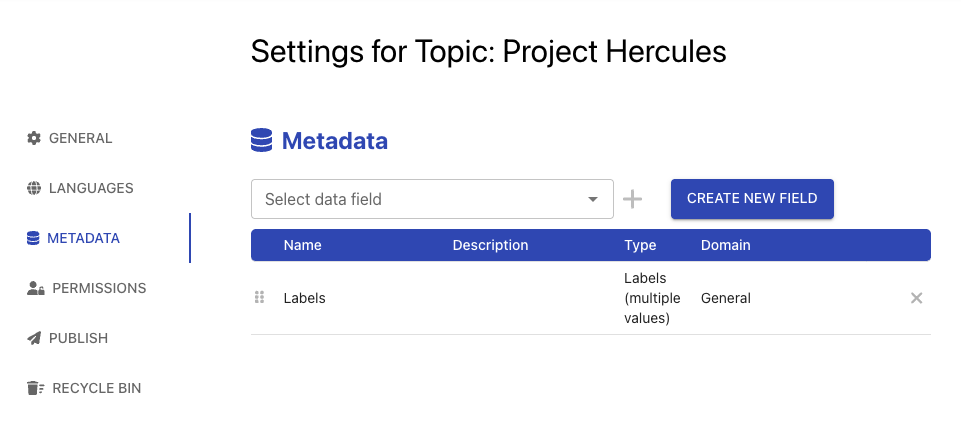
Now add the field Labels to the list. In plan business, you may also add custom or other fields, in plan Team, only the field Labels is shown.
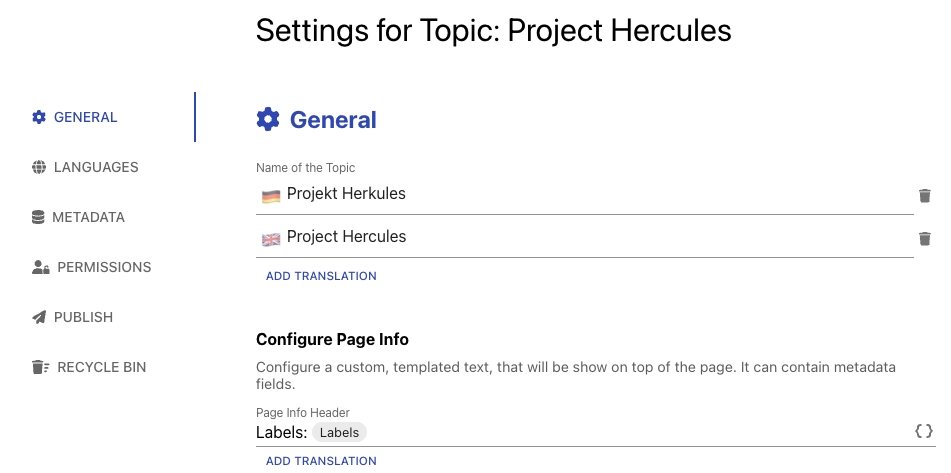
Very often, you also want to display the label in the page info header (see Page decorators) so they are immediately visible and easy to set a new one.
Adding a label to a page
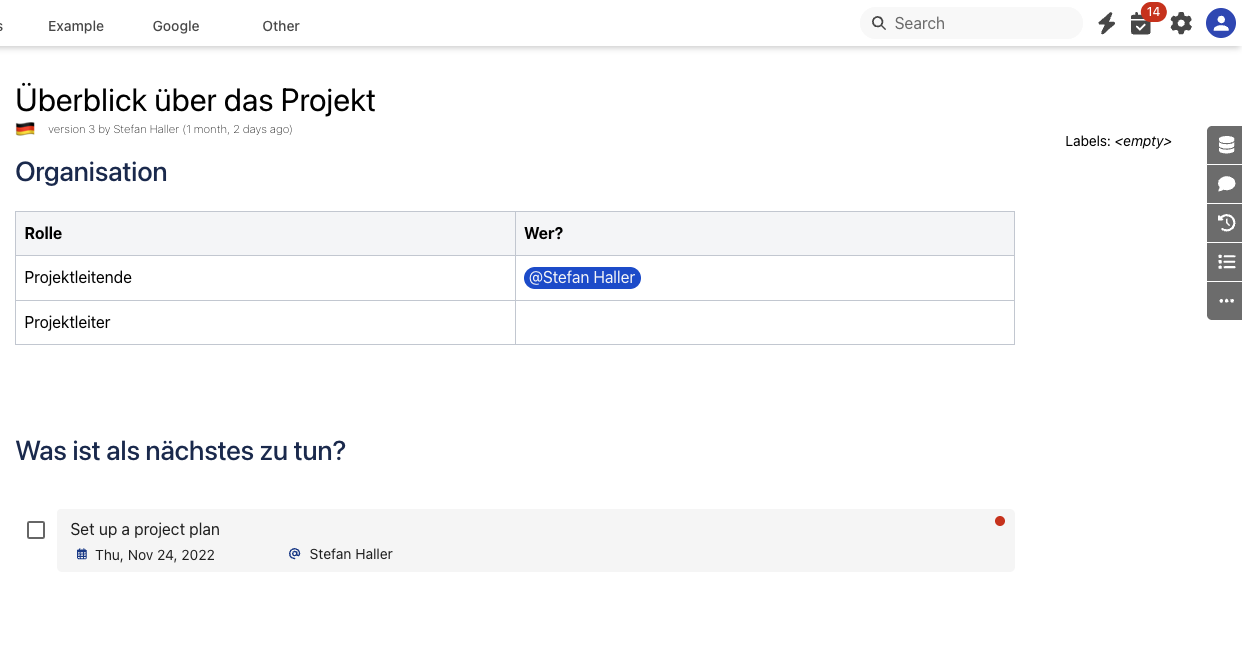
When you open any page, it shows the field labels as empty.
You can now add a label by selecting an existing one or by typing in a new name for a label. You can do so through the metadata pane on the right or if you put labels into your page info header, also by directly editing this in this header.
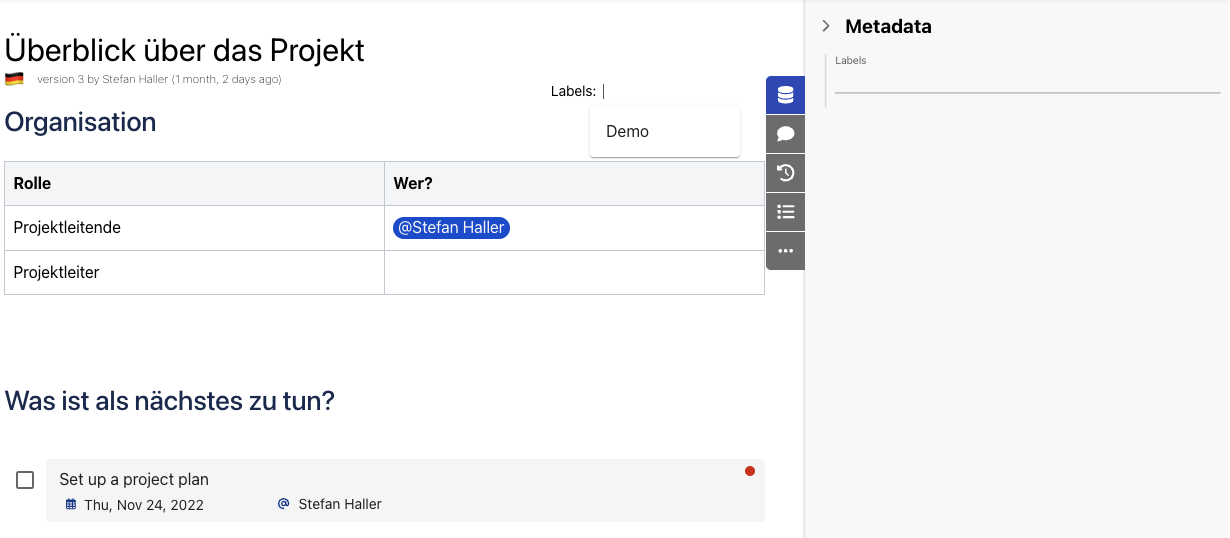
Once you defined your labels, both the page info header and the metadata pane is updated.
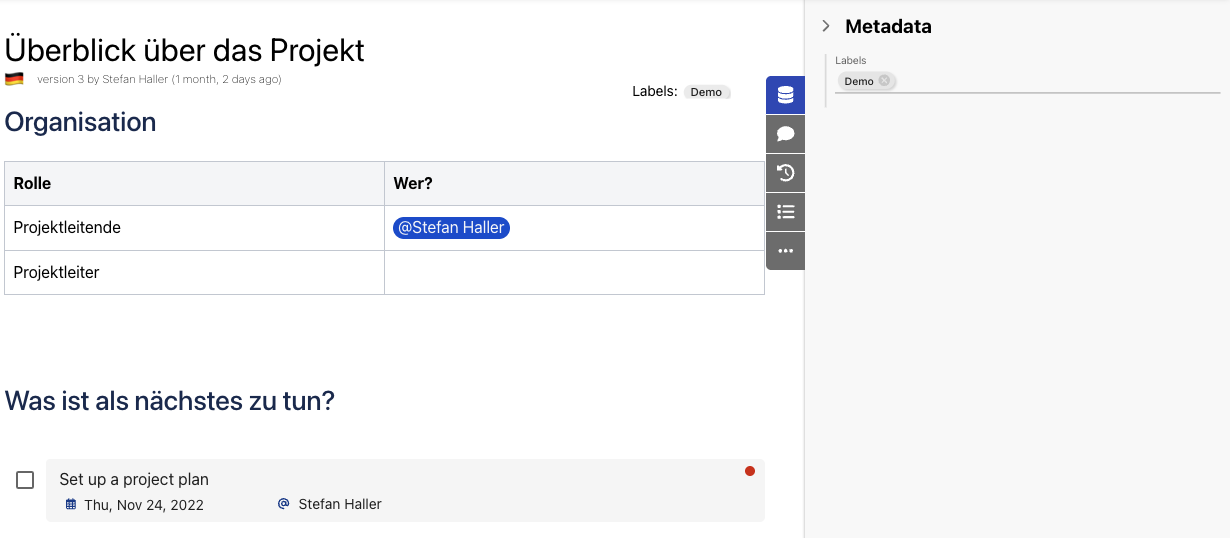
Displaying a list of objects with a certain label set
Use the object list widget to show all objects that have a certain label set. Add an object list widget to any page by typing / or clicking the +-icon from the toolbar in edit mode.
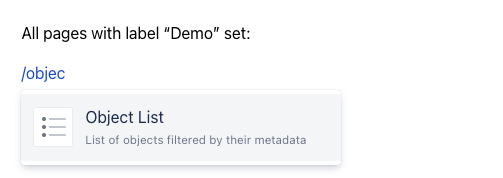
Now add the label to your filter.
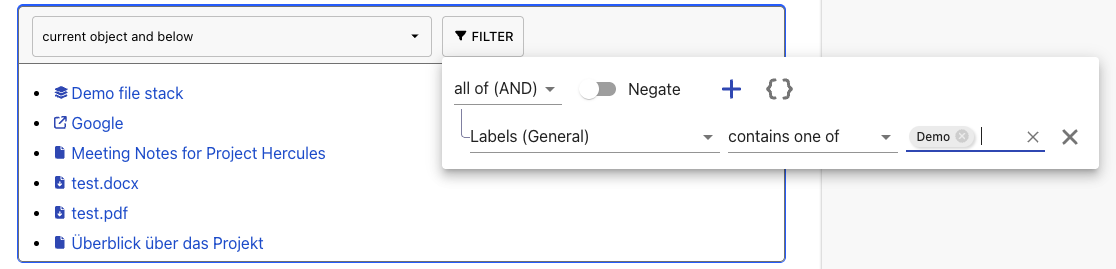
The resulting list looks like this:

Since labels are on kind of field in metadata, you may also use data tables to display objects.