To create a new task, insert one in any page via typing / in edit mode or using the +-toolbar in edit mode.

Tasks have the following properties:
Status: Incomplete / completed
Due date
Assignee
Use tasks in meeting notes and documents whenever you have a follow-up action identified that you want to follow up with.
My tasks
If you have tasks assigned to use, find them in the main navigation bar next to the command palette.

The red number gives you information about the number of tasks assigned to you in the system.
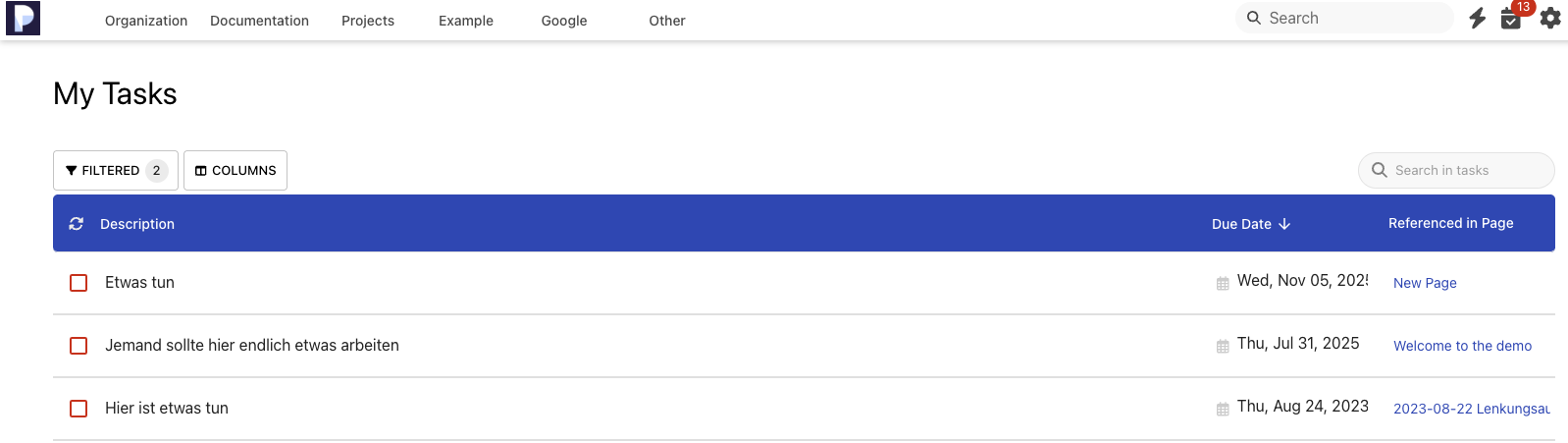
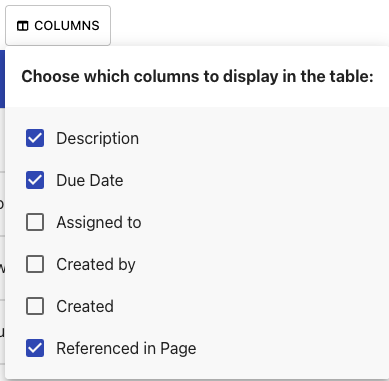
The “My Tasks” view will by default show you all open tasks assigned to yourself. You may customize the column to display inthe table using the columns button.
You may also modify the filter that is used to show the tasks.
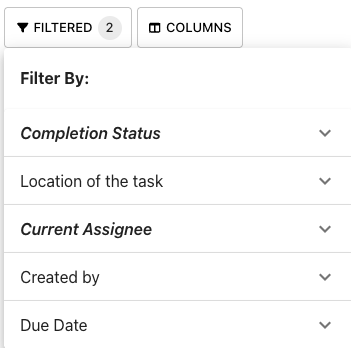
Completion Status and Current Assignee are shown bold, because they have a filter criteria set by default (=incomplete tasks assigned to the current user). You may alter any filter criteria.
Embedding task reports in pages
In any page, you may insert a task report. There are two versions, one shows a list of tasks, the other in a table with configurable columns. In the following example, we insert the Task Report (Table) as it has more options.
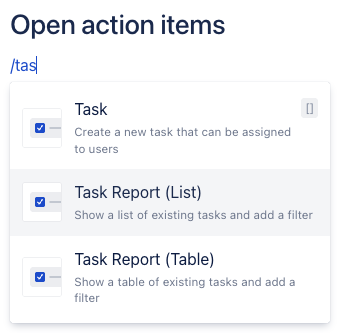
You can use the same filters and column configuration as in the “My Tasks” view to set up your task report.
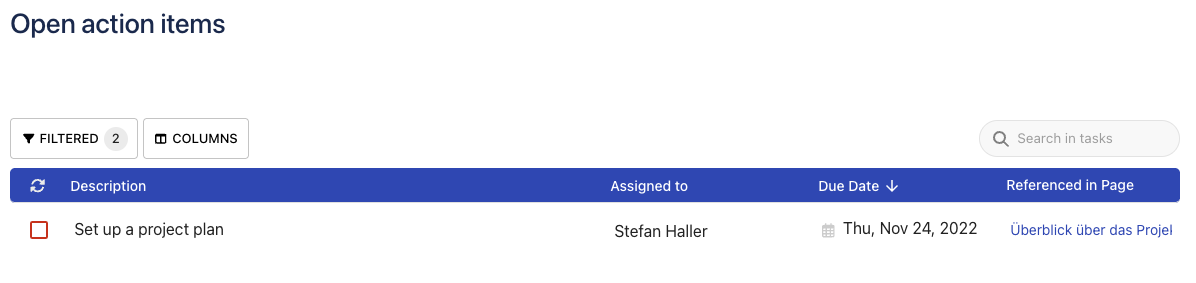
Please note that when you configure the filter and columns in edit mode and then save, the configuration settings are preserved. If you modify filter and columns in view mode, these settings will be reset to the saved settings once you refresh the page.
Use embedded task reports for example in meeting notes to show open tasks from previous meetings in order to address the progress.