As described in Collaborative editing and live updates, all your page edits are immediately saved into a draft version of each page. Visitors opening your page in view mode will not yet see any drafted changes, but only the last published version. See also Versioning, history and restoring deleted objects for more information.
The process to publishing a page depends on your workflow settings for each topic. Depending on this setting, you will see one or two of the saving icons on the right. The upper one will save the page as a draft. The second one will save and publish it as a new version. Publishing means, that the edits you made are now visible when a visitor accesses the page in view mode.
Please note that in our subscription plan team, there is no specific publishing workflow and you only see the icon on the bottom.

Choosing the publishing workflow for a topic
As a topic manager, navigate into the topic settings and find the workflow section.
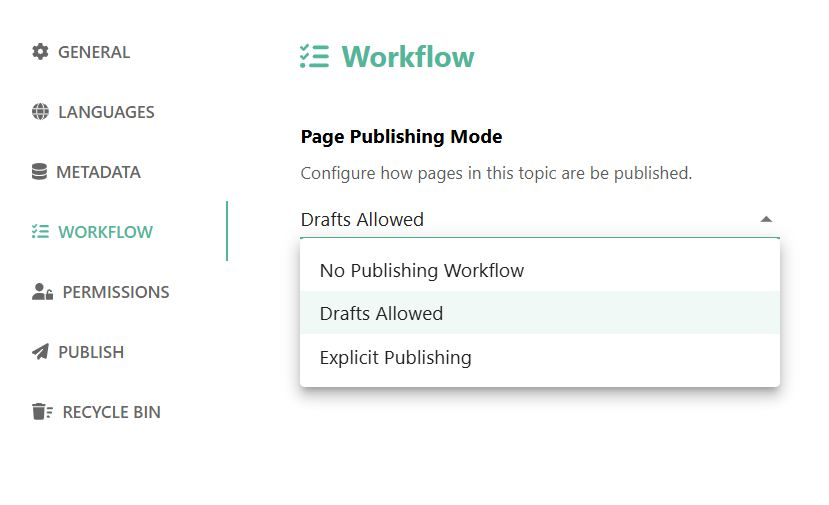
In our subscription plan team, you won’t see this setting and the rules for the option “No Publishing Workflow” applies. See Plans and Features for more information about subscription plans.
In order to understand page publishing workflows in depth, we need to distinguish three distinct actions that are happening either in a combined action or separate, depending on your settings.
Page publishing mode | Save edits/changes in a draft version | Create a new page version | Publish a page version |
|---|---|---|---|
No Publishing Workflow | Implicitly done while editing any page. | Hitting the save button will both create a new page version in the history and publish the new page version so it is visible for users visiting the page in view mode. | |
Drafts Allowed | Implicitly done while editing any page, but the save as draft button makes it explicit and waits for background saving to be completed. | Hitting the save button will both create a new page version in the history and publish the new page version so it is visible for users visiting the page in view mode. | |
Explicit Publishing | Implicitly done while editing any page, but the save as draft button makes it explicit and waits for background saving to be completed. In addition, this will already create a new version of the page flagged as “draft”, meaning, it is already versioned, but not yet published. | Turning a draft version public is a separate step that can be done only on the newest draft version. | |
No Publishing Workflow
In this basic setting, hitting edit on any page and making a change will create a new draft version of the page in the background. On the botton right, you have a save icon that will save this draft as a new version of the page.
You can save your edits as a new page version and publish it to all users visiting the page in view mode by using the “save & publish” action.
As described in Collaborative editing and live updates, page edits are saved continuously. If you did edit a draft, but don’t hit the save action, the draft will be retained in order to protect you from losing data you typed. This means, the draft is created implicitly in the background.
Drafts Allowed
In this setting, the authors of a page will have an additional save action “save as draft” next to the “save & publish” action. The save as draft-action will wait until all edits are securely saved and then leave the edit mode and go back to view mode where you see the last published version of the page.
You can save your edits as a new page version and publish it to all users visiting the page in view mode by using the “save & publish” action.
Sometimes you don’t want users to generate too many versions with unfinished stuff. Use this setting as a reminder for users to first think about whether a new version is already needed or if there will be more changes required. Also, the save as draft option can give your users a warm feeling of security that all changes are properly stored and nothing will be lost. So, bluntly speaking, this option has more a psychological than a technical effect as you could also just use the “no publishing workflow” setting and quickly wait for the top right indicator “saved” to be shown, before navigating away.
Explicit Publishing
This setting will separate the page versioning and publishing actions. Only the save as draft-button is shown at the bottom right. This button will create a new draft version of the page, explicitly flagged as a draft. You can also postpone creating a new draft version of a page by hitting the ESC-button or navigating away.
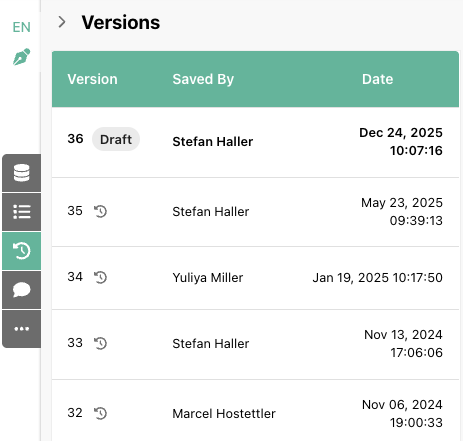
In view mode, every page now has an page workflow indicator below the title.
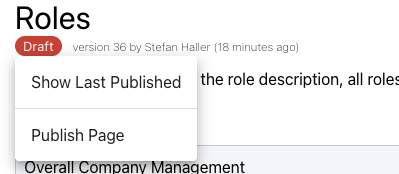
What a users sees depends on her permissions. Read only users will always just see the published version by default and cannot switch to drafts. Users with edit permissions will see the draft version by default, but can switch to the last published version with the “Show Last Published” action in the workflow indicator menu.
If you have permissions to publish a page, you can choose to publish the page.
Explicit publishing in multi-lingual topics
If you set up your topic as containing multi-lingual page versions, the publish action will show you an overview of the last editors for each language as a reminder to maybe update the content in other languages as well before publishing.
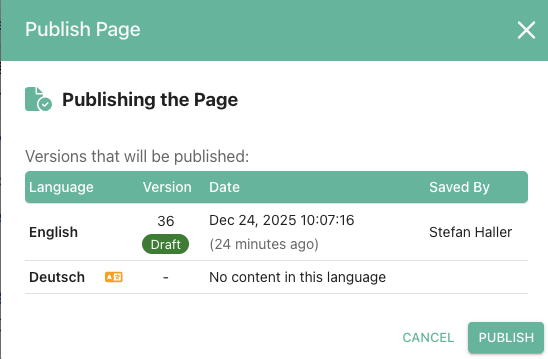
Publishing will happen for all language versions at the same time. The intent is, that this action makes sure all content is published in all languages at the same time.