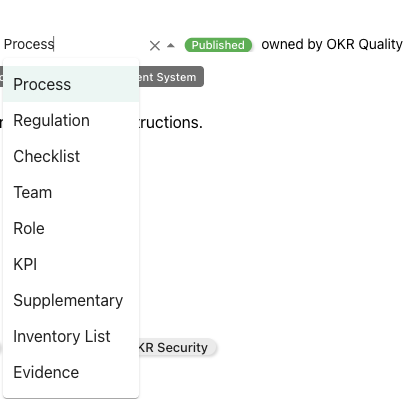
You may add two kinds of page decorators:
Header image
Page info header
Title image
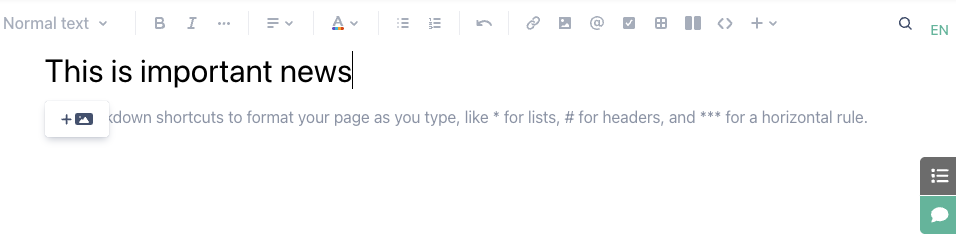
Add a title image by clicking the add image icon while having a the cursor in the title area.
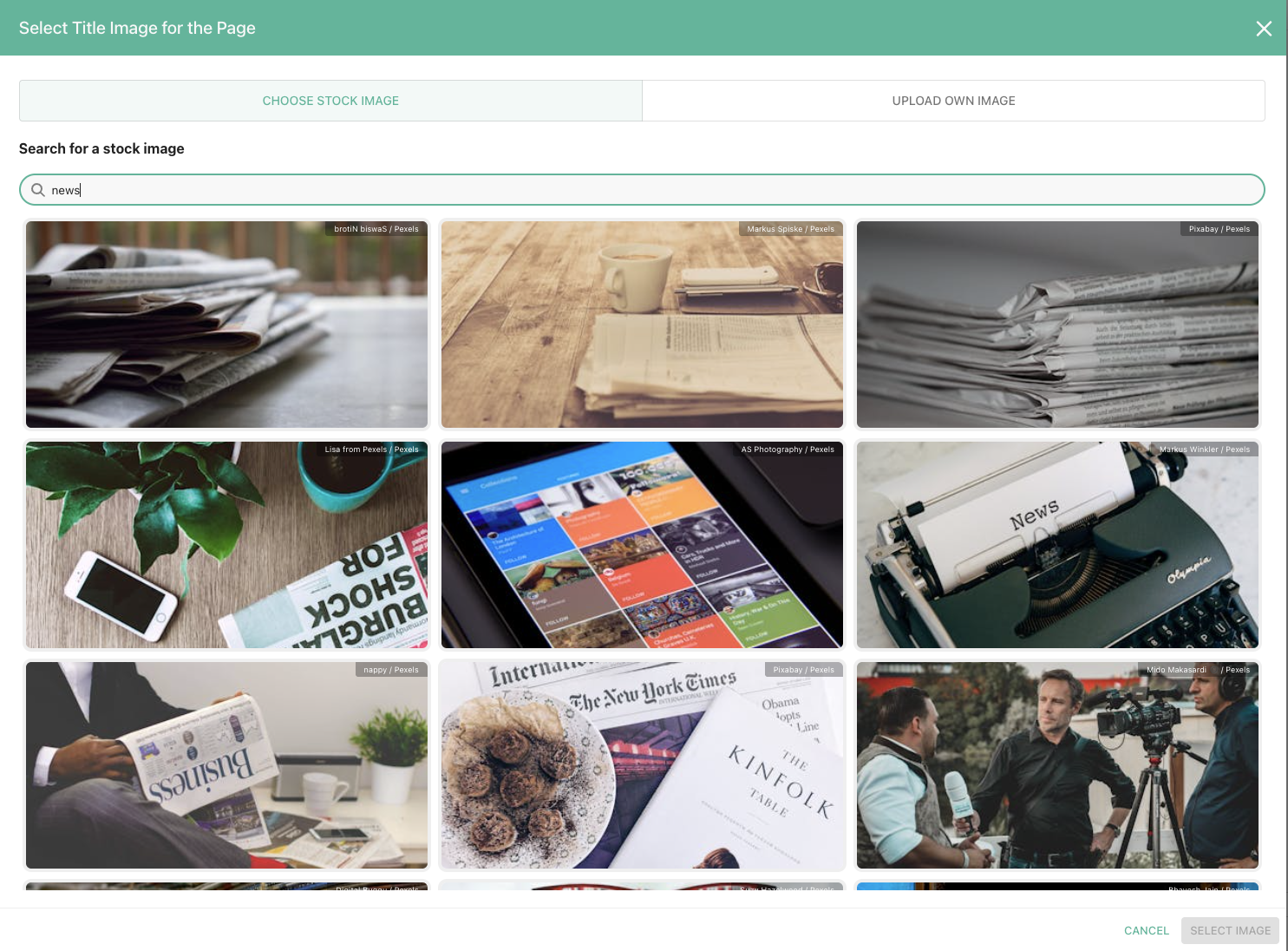
Now either search the picture gallery with keywords or upload your own image.
The stock image service is provided on a free-to-use licence basis. You can use the images without worrying about copyright issues.
After selecting the picture, the title image is now displayed in the title area of the page.
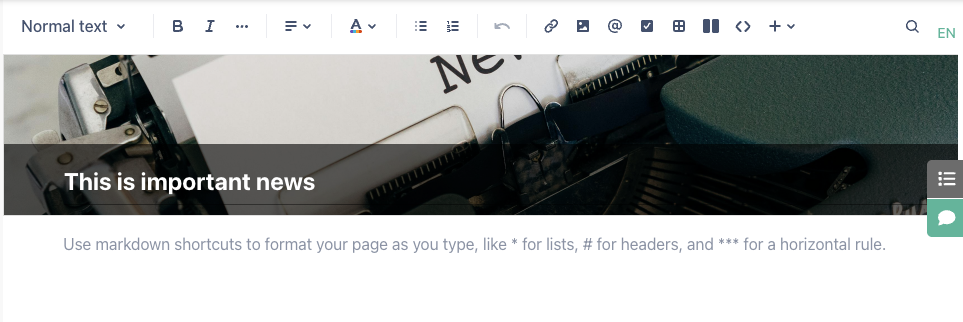
Please note that in this example, the word “News” is not completely displayed. This happens when you select vertically large images as we only show a horizontal extract of the image in order to prevent the header of becoming too large and pushing the actual page content out of sight. You can correct that by modifying the page crop setting. Select the header to get access to this function.
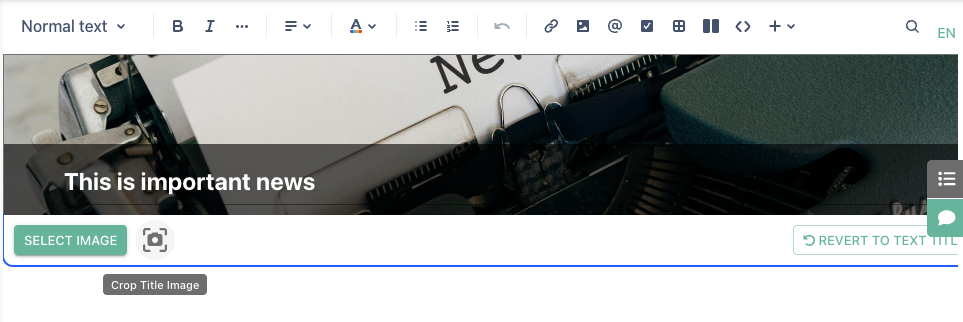
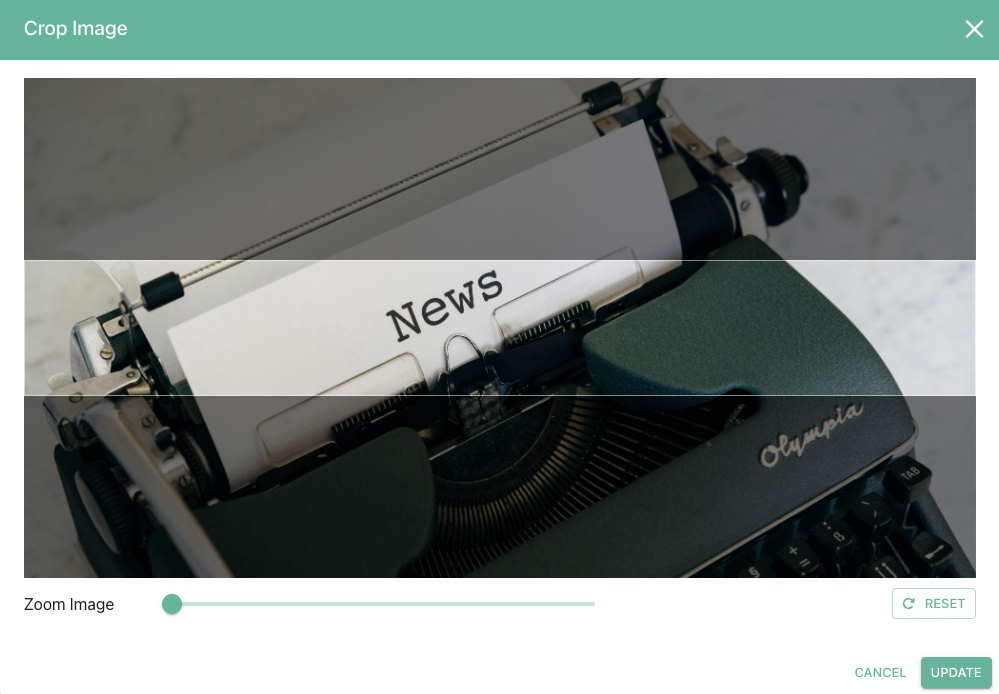
Now you can zoom and select the segment you would like to display.
After cropping the image, the page title header looks better.
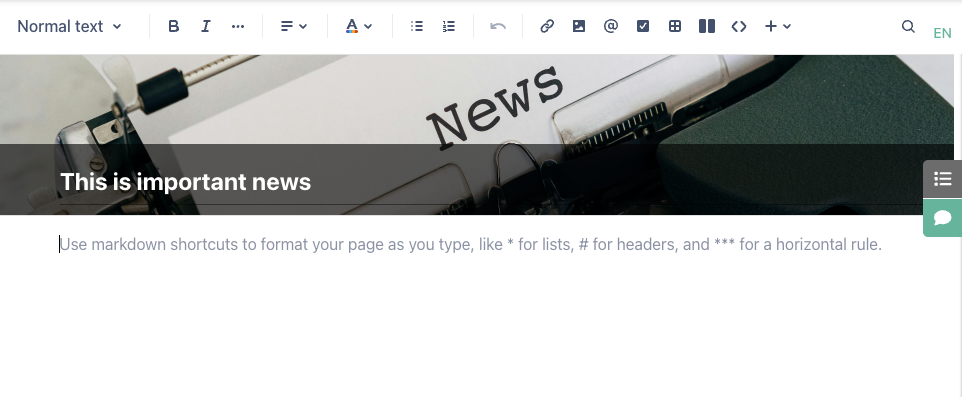
Please note that in Announcement channels, the page title image is also used as the image for a new announcement post in the news feed.
Page info header
The page info header can be configured per topic and is active for all pages in the topic afterwards. You need to have manage topic permissions to access this feature.
Open the topic settings. You find the page info configuration in the general section.
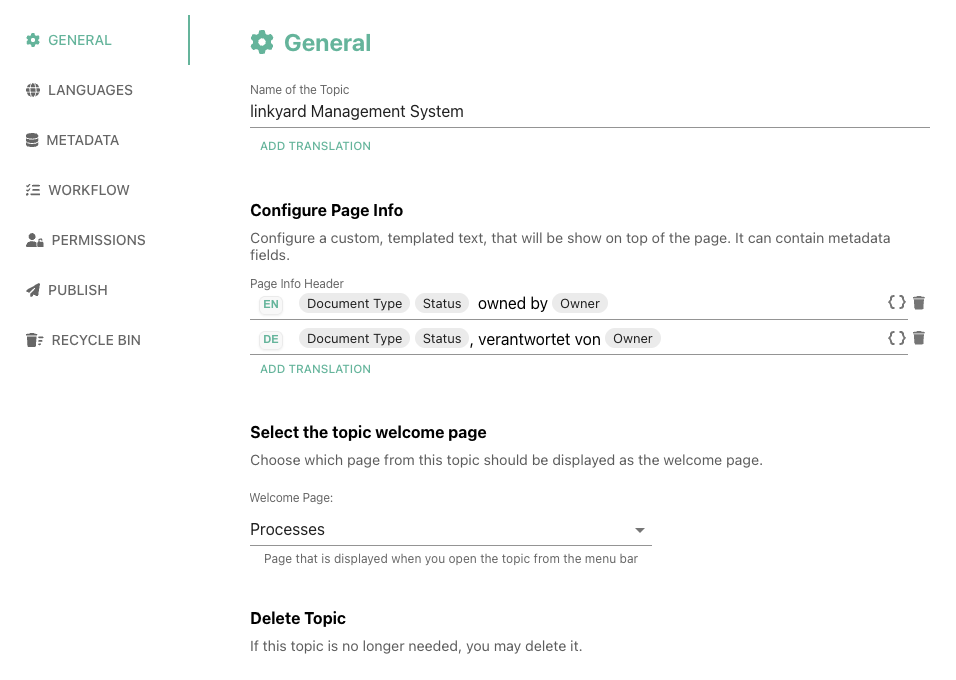
You may combine field values (selected via the {}-icon) and plain text into a string to display on every page.

Please note that showing the status is redundant/unnecessary when you use the Page publishing workflow (Published shown on the right). We recommend using the page publishing workflow when working with a status of a page.
Note as well that you may directly change the value of fields in the header by clicking on them if you have the necessary permissions.